 10% OFF
 Sales and Inventory Management System Using PHP and MySQL
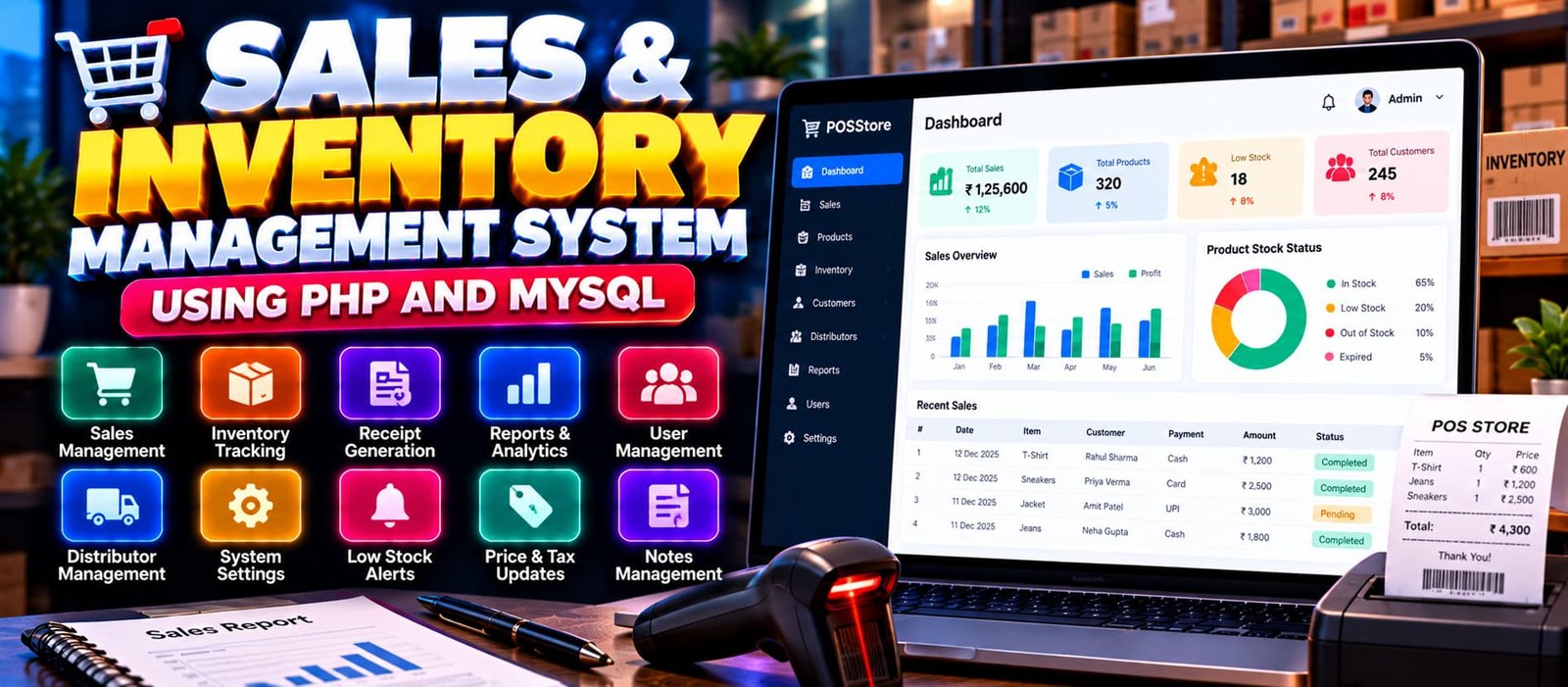
Sales and Inventory Management System using PHP, MySQL, HTML, CSS, and JavaScript. Includes product and stock management, point of sale, sales transactions, purchase management, customer and supplier records, order tracking, low-stock monitoring, and dashboard statistics.
Read more- Built with
- PHPMySQLBootstrapHTML/CSSJavaScript
- You get
- Source codeDatabaseProject reportPPTSetup guide
- Delivery
- Instant download after payment
Project Overview
The Sales and Inventory Management System is a web-based application designed to manage product inventory, sales transactions, purchases, customers, suppliers, and orders through a centralized platform. It helps businesses maintain stock records, process sales, record purchases, and monitor inventory quantities. The system is suitable for understanding common business workflows involving sales and stock management.
Available Features
- Product and Inventory Management
- Add, Update, and Delete Products
- Product Name and SKU Management
- Product Category Management
- Stock Quantity Management
- Product Price Management
- Reorder Level Management
- Point of Sale (POS)
- Customer Selection During Sales
- Product and Quantity Selection
- Sales Transaction Recording
- Order Management
- Order Total and Payment Records
- Paid and Pending Amount Tracking
- Order Status Management
- Purchase Record Management
- Supplier Selection for Purchases
- Purchase Quantity and Cost Recording
- Purchase Approval Workflow
- Automatic Stock Updates After Recorded Sales
- Stock Updates After Approved Purchases
- Customer Information Management
- Supplier Information Management
- Low-Stock Product Monitoring
- Dashboard Statistics
- User Authentication and Access Control
Which Technologies Are Used in This Project?
- PHP: Handles server-side functionality and business operations.
- MySQL: Stores product, customer, supplier, purchase, and sales records.
- HTML: Structures the application's web pages.
- CSS: Styles the user interface.
- JavaScript: Supports client-side interactions.
More Details and Full Documentation
For the original project details, screenshots, and installation instructions, visit the project page.
- User Authentication
- Dashboard Management
- Product Management
- Product Category Management
- Stock Quantity Management
- Reorder Level Management
- Point of Sale (POS)
- Sales Transaction Management
- Order Management
- Payment and Due Amount Tracking
- Purchase Management
- Supplier Management
- Purchase Approval
- Customer Management
- Sales and Order Records
- Low-Stock Monitoring
- Dashboard Statistics
- Access Control
- Install XAMPP and Visual Studio Code.
- Extract the project ZIP file.
- Copy the extracted project folder into the XAMPP htdocs directory.
- Start Apache and MySQL from the XAMPP Control Panel.
- Open phpMyAdmin:
http://localhost/phpmyadmin/
- Review the project files to identify the required database name and supplied SQL file.
- Create the required MySQL database.
- Import the supplied SQL file into the database.
- Open the project folder in Visual Studio Code.
- Locate the database configuration file, such as config.php, if present.
- Configure the database host, username, password, and database name according to the project settings.
- Open the application in your browser using the actual extracted folder name.
Stuck while running it? Chat with us on WhatsApp for free installation help.
No reviews yet. Be the first to review this project.