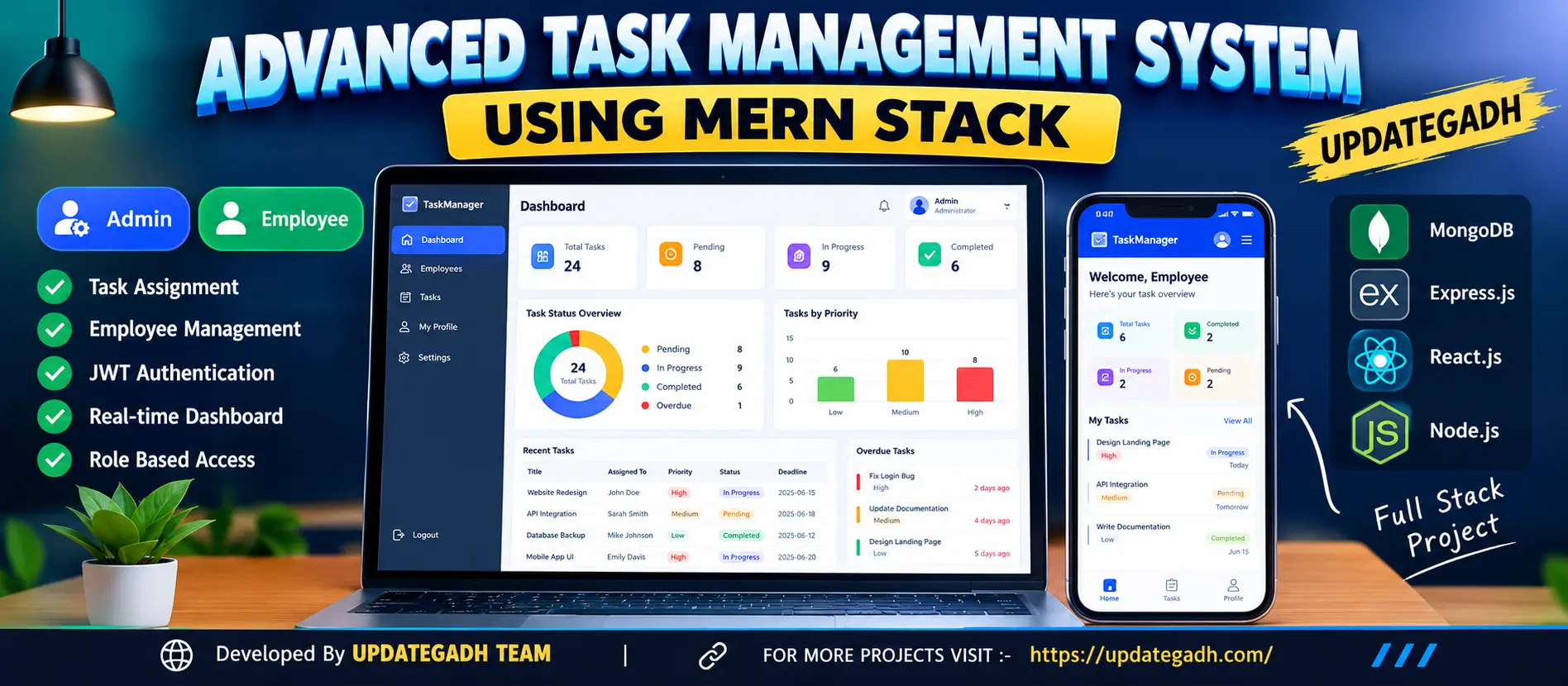
Task Management System Using MERN Stack
Advanced Task Management System Using MERN Stack is a full-stack web application for employee management, task assignment, deadline tracking and progress monitoring. Built with MongoDB, Express.js, React.js and Node.js, it features separate Admin and Employee dashboards, JWT authentication, priority-based task management, overdue task identification, profile management and real-time database-driven statistics.
What You Will Get
Project Overview
The Advanced Task Management System Using MERN Stack is a full-stack web application designed to help organizations manage employees, distribute tasks, monitor deadlines and track work progress. It provides separate dashboards for administrators and employees, allowing each role to access the features relevant to its responsibilities.
Developed using MongoDB, Express.js, React.js and Node.js, the application combines a responsive interface with role-based access control, task tracking and database-driven statistics. It is suitable for students learning full-stack JavaScript development, REST APIs, authentication and database operations.
Available Features
1. User Authentication and Profile Management
- Secure login for Admin and Employee users.
- JWT-based authentication.
- Password hashing for account security.
- Role-based authorization for protected pages and API operations.
- Secure logout functionality.
- View and edit personal profile information.
2. Admin Dashboard
- View task counts grouped by status.
- Identify overdue tasks.
- Manage employee accounts.
- Create, assign, update and delete tasks.
- Monitor employee workloads and task completion rates.
- Search, filter and sort employee and task records.
- View dashboard charts and workload information based on MongoDB records.
3. Employee Dashboard
- View tasks assigned to the logged-in employee.
- Read task descriptions and deadlines.
- Check task priority levels.
- Update task status to Pending, In Progress or Completed.
- Filter assigned tasks by status and priority.
- View personal task statistics and profile information.
4. Task Management
- Create and maintain task titles and descriptions.
- Assign tasks to employees.
- Set Low, Medium and High priority levels.
- Set task deadlines.
- Track task status and timestamps.
- Automatically identify overdue tasks.
- Validate task updates and restrict unauthorized operations.
5. Database-Driven Statistics
The dashboard uses actual MongoDB records rather than fixed demonstration values. Task information can be organized by status, priority, deadline and assigned employee, helping administrators understand workload distribution and completion progress.
Administrator Workspace
Administrators can manage employee accounts, create and assign tasks, update task details, monitor deadlines and review work progress. Dashboard charts and statistics provide an overview of task distribution, overdue work and employee completion rates.
Employee Workspace
Employees can access their assigned tasks, review requirements and deadlines, check priorities and update task progress. The employee dashboard also provides access to personal task statistics and profile information without exposing administrative functions.
Task Priority and Deadline Tracking
Each task can include a title, description, assigned employee, priority, deadline and status. The application identifies tasks whose deadlines have passed while their status remains incomplete, making delayed work easier to monitor.
Technology Stack
- Frontend: React.js
- Styling: CSS
- Backend: Node.js and Express.js
- Database: MongoDB
- Authentication: JSON Web Tokens (JWT)
- Password Security: Password hashing
- API: REST API endpoints
Software and Tools Required
- Node.js and npm
- MongoDB Community Server or another accessible MongoDB deployment
- Visual Studio Code
- A modern web browser
- MongoDB connection string and backend environment configuration
Installation and Execution
Extract the project ZIP file and open the project folder in Visual Studio Code. Configure MongoDB and the backend environment variables, then install the dependencies using the commands below from the project root.
npm install
npm run install:all
Start the application using:
npm run devWhen both servers start successfully, open http://localhost:5173 for the frontend. The backend API is available at http://localhost:5000/api, with its health check at http://localhost:5000/api/health.
Initial Administrator Setup
Open the application in your browser and use the initial Admin setup option to enter the required name, email address and password. According to the project documentation, the initial Admin creation endpoint becomes unavailable after an account has been created.
After signing in, create employee accounts, assign tasks, set deadlines and monitor progress through the administrator dashboard.
Project Applications
- Employee task assignment and monitoring.
- Workload distribution across teams.
- Deadline and overdue task tracking.
- Employee progress monitoring.
- Full-stack MERN development practice.
- Academic projects involving authentication, CRUD operations and database-driven dashboards.
More Details and Full Documentation
View Advanced Task Management System Using MERN Stack Details
Project Modules
2. JWT Authorization Module
3. Role-Based Access Control Module
4. Admin Dashboard Module
5. Employee Dashboard Module
6. Employee Account Management Module
7. Task Creation Module
8. Task Assignment Module
9. Task Update and Deletion Module
10. Task Priority Management Module
11. Deadline Tracking Module
12. Overdue Task Identification Module
13. Task Status Management Module
14. Employee Workload Monitoring Module
15. Task Search and Filtering Module
16. Database-Driven Statistics Module
17. Profile Management Module
18. MongoDB Database Integration Module
19. REST API Module
Installation Guide
1. Install Node.js and npm on your computer.
2. Install MongoDB Community Server or configure an accessible MongoDB deployment.
3. Install Visual Studio Code.
4. Extract the project ZIP file and open the Task Management System Using MERN Stack folder in VS Code.
5. Start MongoDB or verify that your MongoDB connection string is accessible.
6. Open the terminal in the project root directory.
7. Install root dependencies using: npm install
8. Install project dependencies using: npm run install:all
9. Open the backend folder and copy .env.example to .env.
10. Configure MONGO_URI, JWT_SECRET and any other variables specified in the example environment file.
11. Save the environment configuration and ensure the database connection is valid.
12. Return to the project root directory.
13. Start the application using: npm run dev
14. Open the frontend at http://localhost:5173.
15. Check the backend API at http://localhost:5000/api.
16. Verify the backend health check at http://localhost:5000/api/health.
17. Use the initial Admin setup option to create the first administrator account.
18. Sign in as Admin and create employee accounts.
19. Create tasks, assign employees, set priorities and deadlines, and monitor task progress.
20. Sign in as an Employee to view assigned tasks and update their status.
21. Verify that dashboard statistics reflect the actual MongoDB records.
22. Keep both frontend and backend servers running while testing the complete application.
FAQ for this project coming soon.
No reviews yet. Be the first to review!
Write a Review
Related Projects
 65% OFF
Featured
65% OFF
Featured
 50% OFF
Featured
50% OFF
Featured
 65% OFF
Featured
65% OFF
Featured
 55% OFF
Featured
55% OFF
Featured