 33% OFF
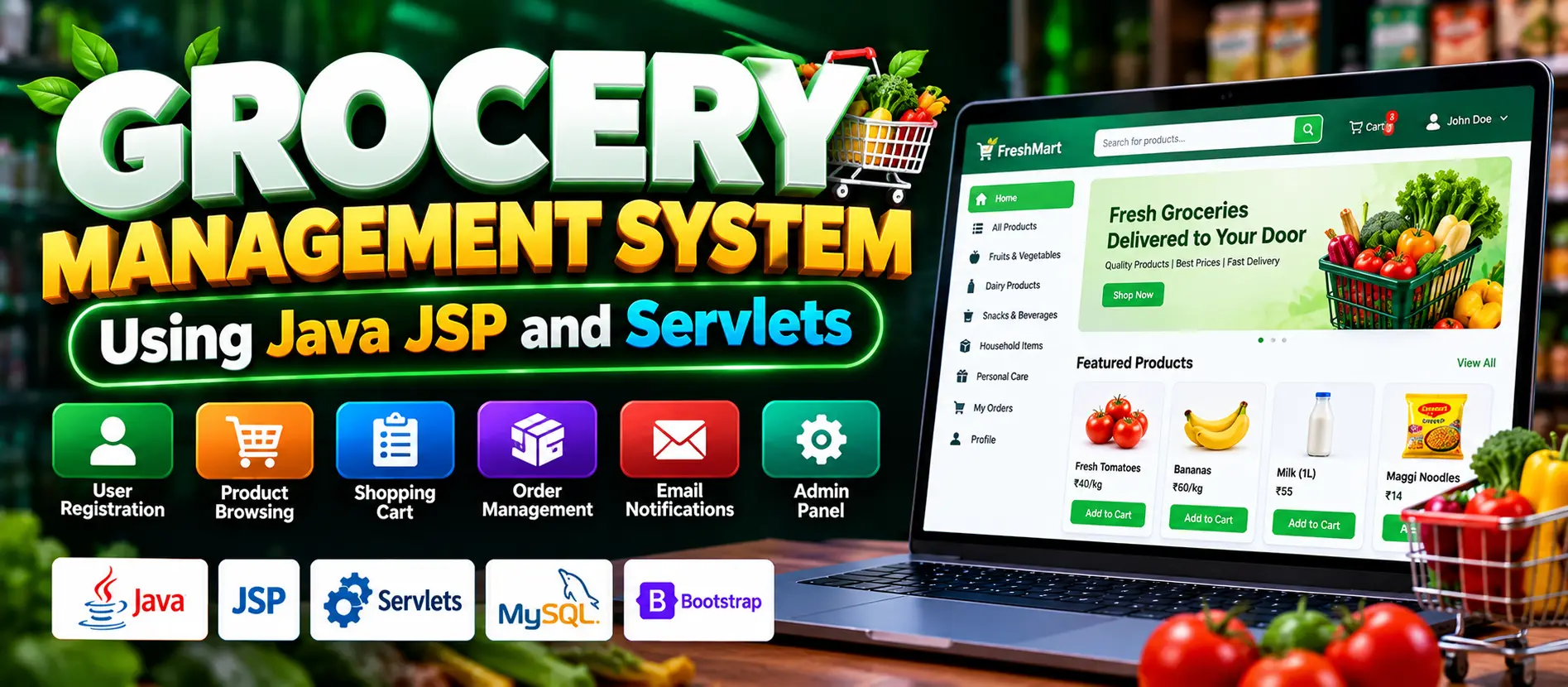
 Grocery Management System using JSP and Servlets
The Grocery Management System using JSP and Servlets is a Java-based e-commerce web application that enables customers to register, browse and search grocery products, manage shopping carts, place orders, make payments, and track shipments. Administrators can manage inventory, update product details, and process orders. The application also supports email notifications for registration, order confirmations, stock updates, and delivery information.
Read more- Built with
- JavaMySQLBootstrapHTML/CSSJavaScript
- You get
- Source codeDatabaseProject reportPPTSetup guide
- Delivery
- Instant download after payment
Project Overview
The Grocery Management System using JSP and Servlets is an e-commerce web application developed using Java, JSP, Servlets, JDBC, and MySQL. It provides an online platform where customers can browse grocery products, search for items, manage their shopping carts, place orders, and track shipment status.
The application includes an administrator panel for managing grocery inventory, updating product prices and availability, and processing customer orders. Email notifications support user registration confirmations, order confirmations, stock updates, and shipment and delivery updates.
Available Features
- User Registration and Login: Allow customers to create accounts, log in, and manage their accounts.
- Product Browsing and Search: Browse, search, and filter grocery products.
- Shopping Cart: Add and remove products and modify item quantities.
- Checkout and Orders: Proceed through checkout, place orders, and make payments.
- Order Tracking: Track order and shipment status.
- Inventory Management: Manage grocery stock and update product prices and availability.
- Order Processing: Allow administrators to process customer orders.
- Email Notifications: Send registration confirmations, order confirmations, stock availability updates, and shipment and delivery notifications.
- Responsive Interface: Build the user interface using HTML, CSS, JavaScript, and Bootstrap.
Which Technologies Are Used in This Project?
- Programming Language: Java
- Server-Side Technologies: JSP and Servlets
- Database: MySQL
- Database Connectivity: JDBC
- Frontend: HTML, CSS, JavaScript, Bootstrap
- Development IDE: Eclipse Enterprise Edition
- Application Server: Apache Tomcat 8.0
- Build and Dependency Management: Apache Maven
- Local Database Environment: XAMPP
More Details and Full Documentation
Visit the official UPDATEGADH project article for the project overview, features, technology requirements, setup instructions, and sample login credentials.
More Details and Full Documentation
Watch Project Demo
Watch the Grocery Management System using JSP and Servlets Project Demo on YouTube
- Customer Registration and Login
- Customer Account Management
- Grocery Product Browsing
- Product Search and Filtering
- Shopping Cart Management
- Checkout and Order Placement
- Payment Processing
- Order and Shipment Tracking
- Inventory Management
- Product Price and Availability Management
- Order Processing
- Email Notification Management
- Registration Confirmation Emails
- Order Confirmation Emails
- Stock Availability Notifications
- Shipment and Delivery Notifications
Step 1: Install Java JDK, Eclipse Enterprise Edition, Apache Tomcat 8.0, MySQL, and XAMPP.
Step 2: Start the required MySQL service.
Step 3: Open Eclipse Enterprise Edition.
Step 4: Navigate to File > Import and select the project import option for the Java e-commerce website project.
Step 5: Import the project into Eclipse.
Step 6: Right-click the imported project and select Run As > Run on Server.
Step 7: Select Apache Tomcat Server 8.0, then click Next and Finish.
Step 8: Open the Tomcat server configuration in Eclipse and check the configured port. The article specifies port 8083 as the default.
Step 9: Start the server and open the application using the configured port and project context path.
Step 10: Use the following sample administrator account
Email: admin@gmail.com
Password: admin
Step 11: Use the following sample customer account
Email: guest@gmail.com
Password: guest
Step 12: To configure Gmail notifications, enable 2-Step Verification in Google Account Security, generate an App Password, and configure the application's email settings with that password.
Stuck while running it? Chat with us on WhatsApp for free installation help.
No reviews yet. Be the first to review this project.
Related projects

 25% OFF
 28% OFF